Panel-Struktur
Where to find what?
On this page you will find details about the arrangement of elements and where to find what in the Twasi panel.
Basic Structure
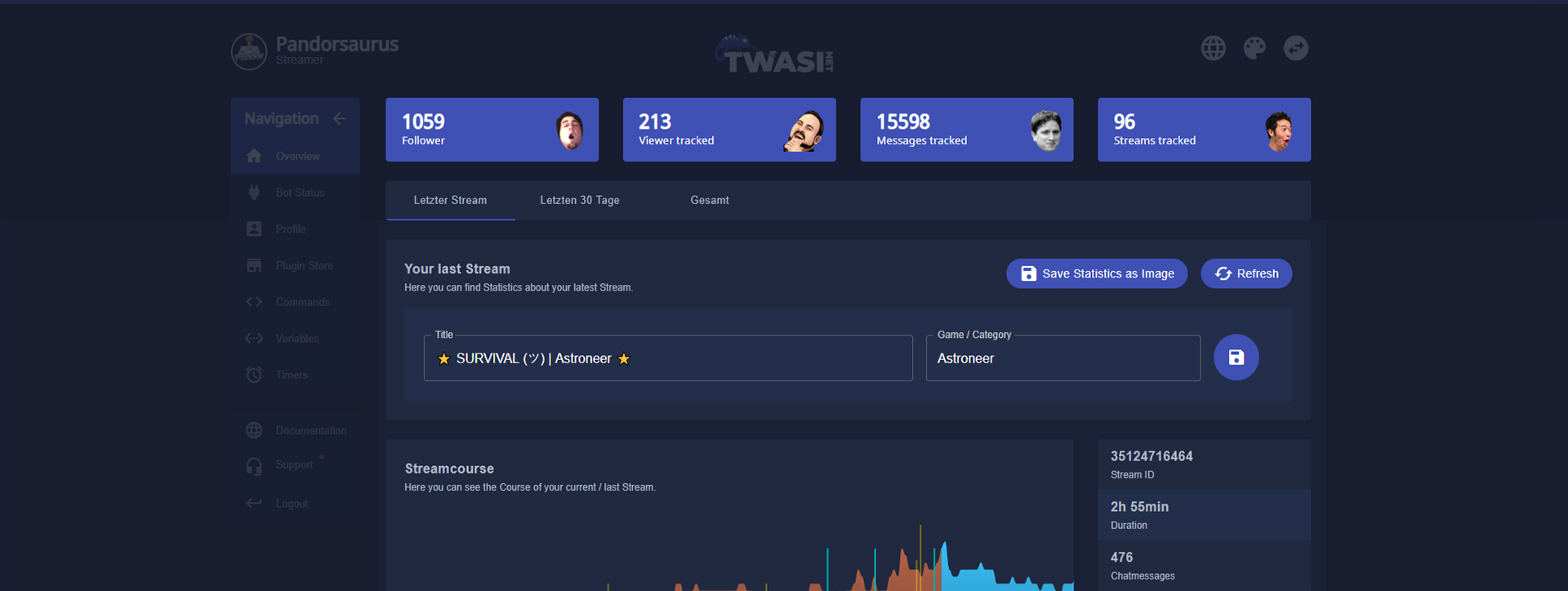
The Twasi panel consists of three main segments. The sidebar, the header and the content area.
The Sidebar
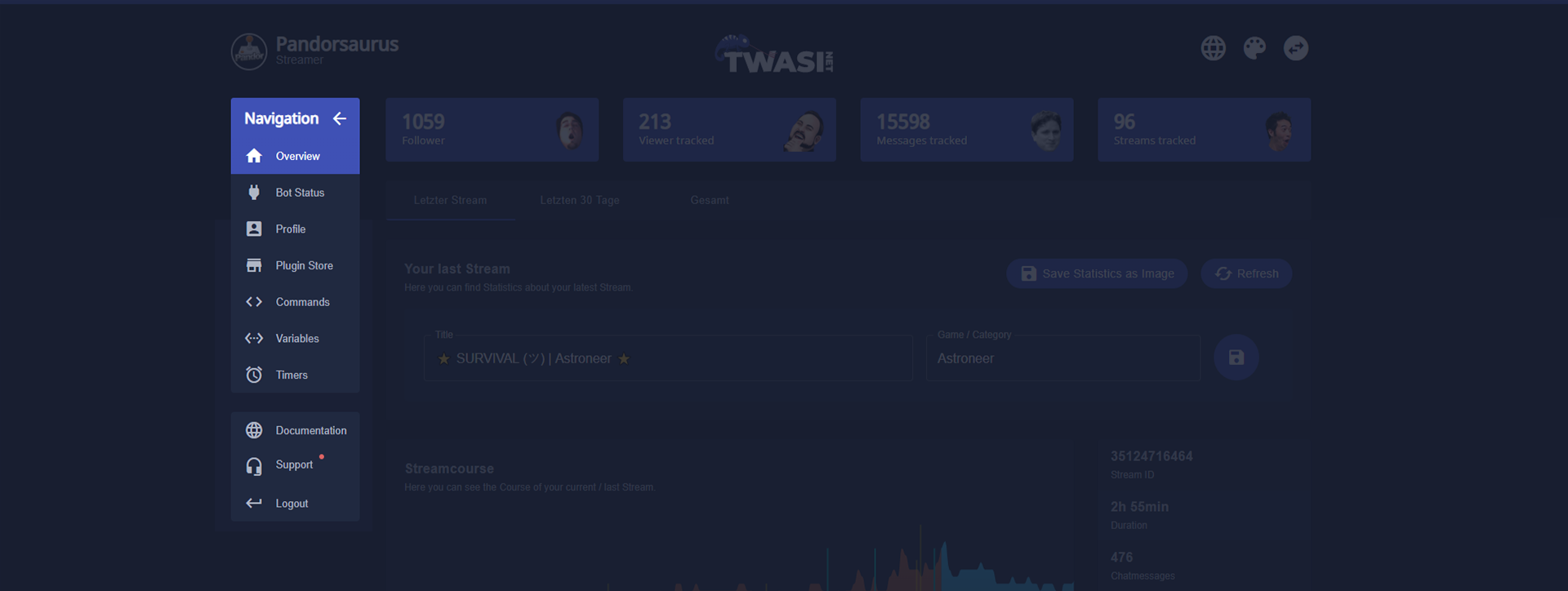
The most important thing on a good working platform is to provide a convenient way to navigate through the contents of the different subpages.
For that purpose we use a dynamic sidebar which shows only the pages you want to see and need.
That's awesome! But how does that work?
As you might already know, our chatbot is modular. You can install and uninstall every plugin that you want to use, respectively you don't want to use anymore.
The sidebar keeps track of what you have installed on your account and only displays the matching pages for - as an example - the commands plugin.
The header
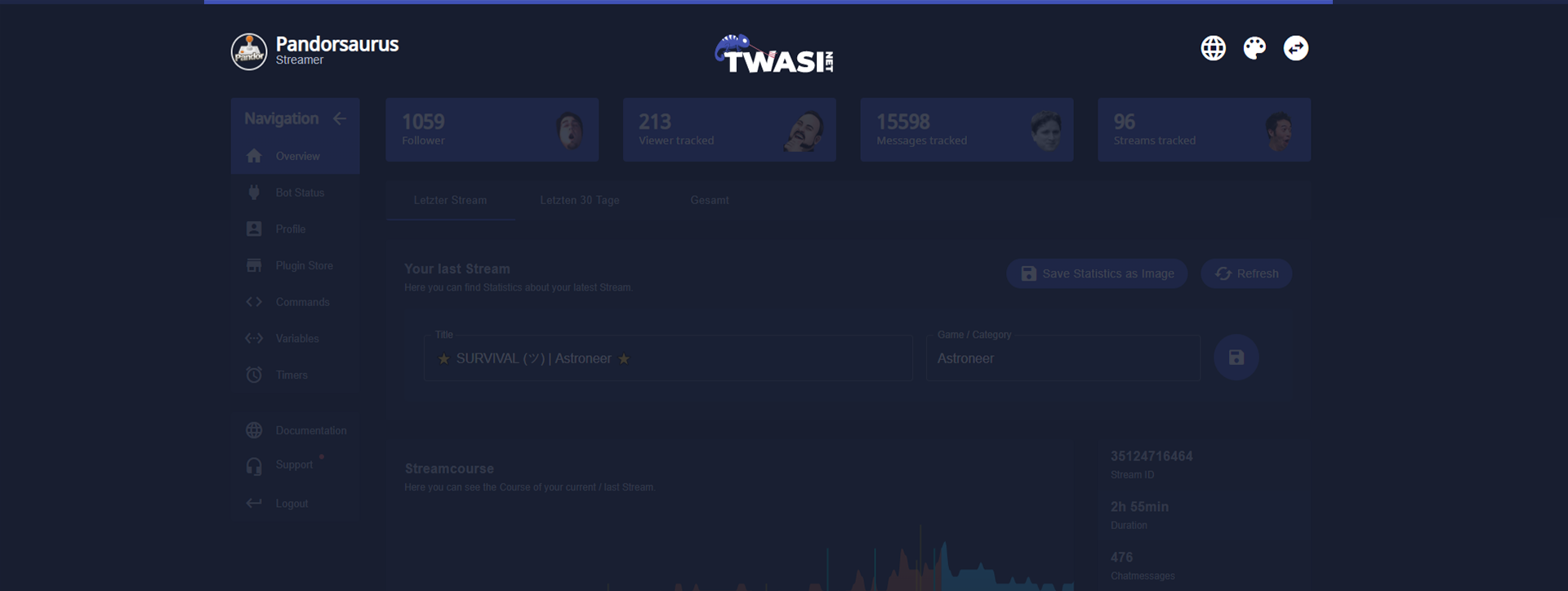
We use the header section of the Twasi panel to display your Twitch name, your avatar and your Twasi rank.
On the left hand side of the header you can find three buttons. The first of the three is used to change the language of the whole panel.
The second one is used to swap between a lot of custom designed themes to choose from. The last one is a function that will be implemented later on in the development of Twasi. It will be utilized to switch between accounts you have access to or to give your mods the ability to access your panel and to manage your bot.
The content area
The content area displays all your settings, statistics and other cool stuff to work with. It changes its contents by navigating through the sidebar.